
Sensory Writeable integrates with Apple Writing Tools — the on-device AI proofreading, grammar checking, and summarisation feature available in macOS Sequoia. Using Writing Tools to correct your text before running a Writeable analysis is recommended, as it gives Writeable cleaner input and produces more focused, useful feedback.
How to use Writing Tools in Writeable
Method 1 — Using the Writing Tools icon
- Paste your text into the Writeable input area.
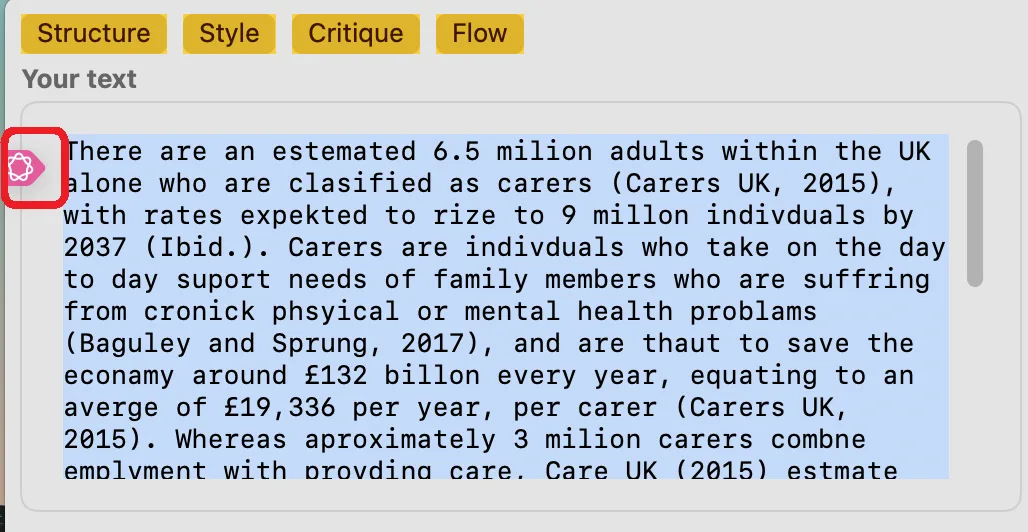
- Select all or part of the text with your mouse.
- The Writing Tools icon will appear above the selected text.
- Click the icon to open the Writing Tools panel.
Method 2 — Using the Writeable menu
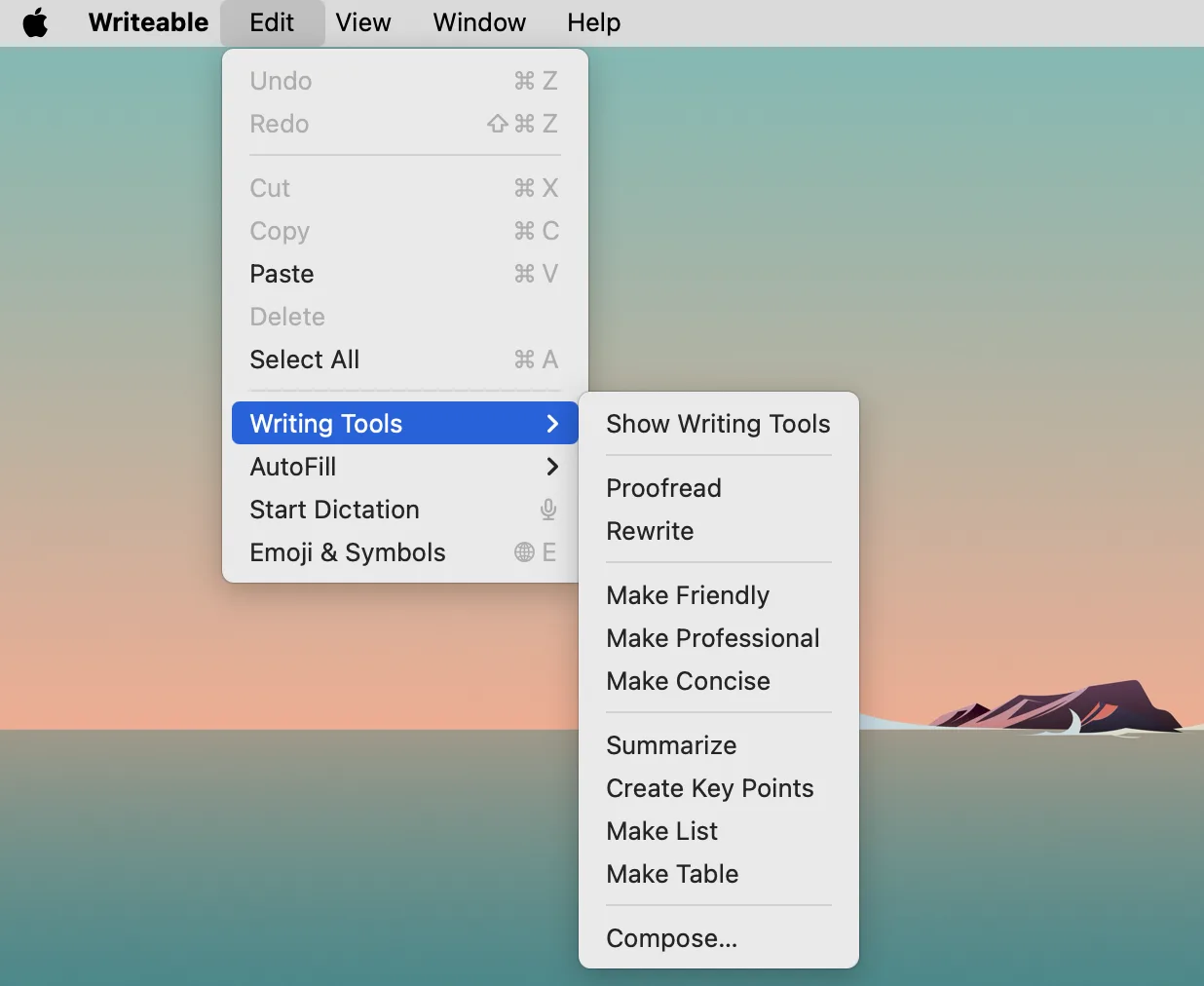
- Select your pasted text in the Writeable input area.
- Click the Writeable dock icon to open the Writeable Mac menu.
- Choose Show Writing Tools from the menu.
Running Proofread
In the Writing Tools panel, click Proofread. Writing Tools will check spelling and grammar and show suggested corrections.
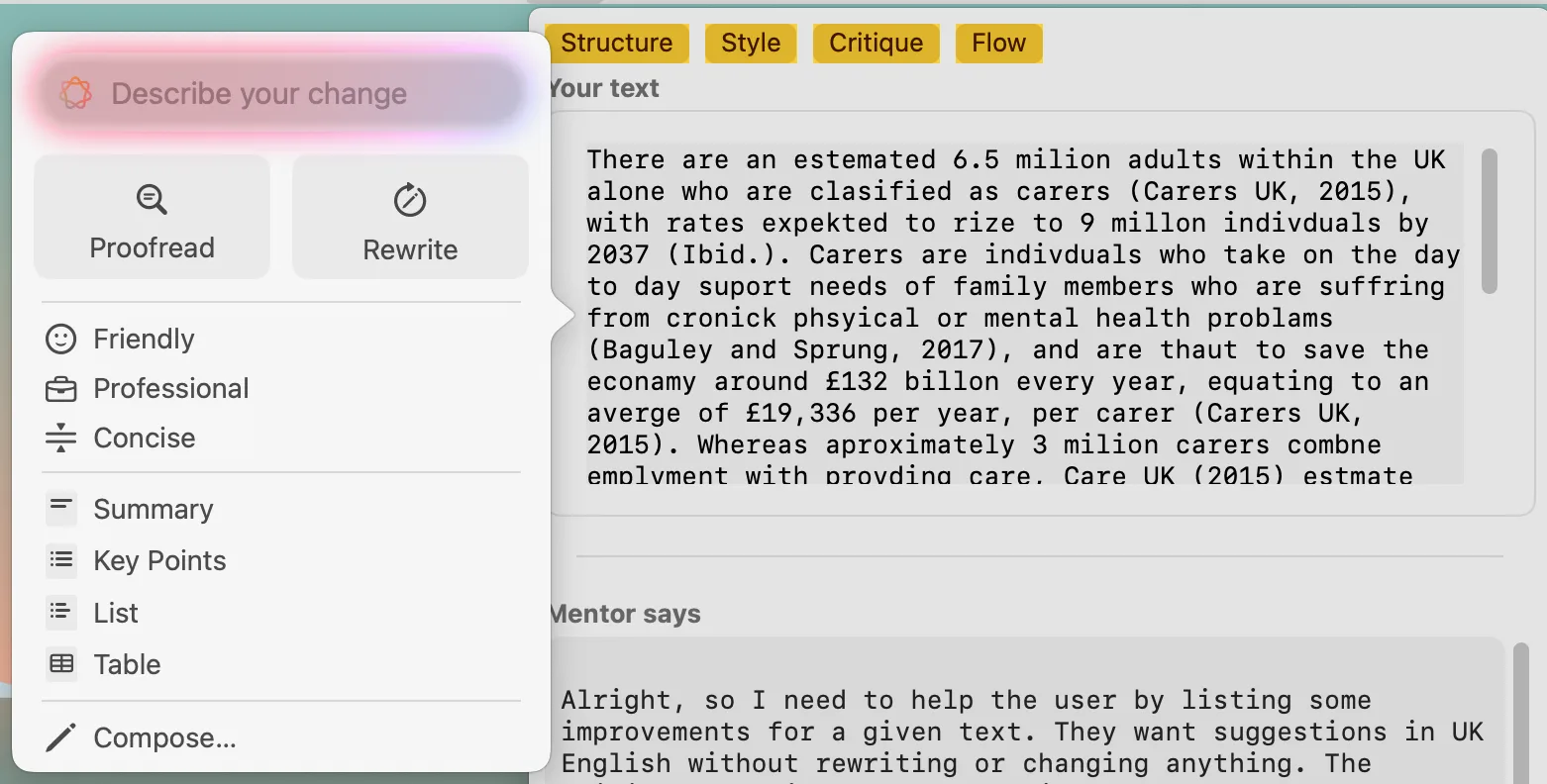
Click Replace to accept a correction and update the text in the Writeable input area. Once you have reviewed and applied corrections, proceed to run a Writeable analysis on the corrected text.

macOS Sequoia required: Apple Writing Tools requires macOS Sequoia (version 15) or later. All Writing Tools processing is done on-device using the Apple Neural Engine — no internet connection is required.