
Scribe for Mac saves every recording as a self-contained folder in your Documents directory. You can manage recordings directly in Finder like any other file.
Where recordings are saved
Recordings are stored at ~/Documents/Scribe Recordings/. Each recording is a named folder.
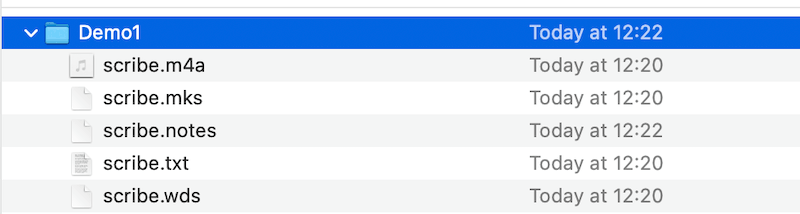
Each recording package contains the following files:
scribe.m4a— the full audio recording of the event or meeting.scribe.mks— contains the marker information.scribe.notes— contains any manual notes typed in the Notes pane.scribe.txt— the transcribed text from the audio file, saved as plain text.scribe.wds— contains the text together with individual word-timing information used for playback highlighting. This is a Scribe "system file".
Duplicating and renaming
Use Duplicate (⌘ D) to create a copy of a recording under a new name — useful for creating a version to edit or share while keeping the original intact.
Sharing recordings
Use the Share sheet in macOS to export a complete recording as a ZIP archive. The ZIP contains the full recording package — audio, transcription, word-timing data, markers, and notes — making it easy to share with colleagues or import on another Mac.
Backup
Scribe recording folders are fully compatible with Time Machine and iCloud Drive. If iCloud Drive is enabled for your Documents folder, recordings back up automatically.