
If you use multiple virtual desktops (Spaces) on your Mac, you can set Sensory Ruler to appear across all of them so you always have it available regardless of which desktop you switch to.
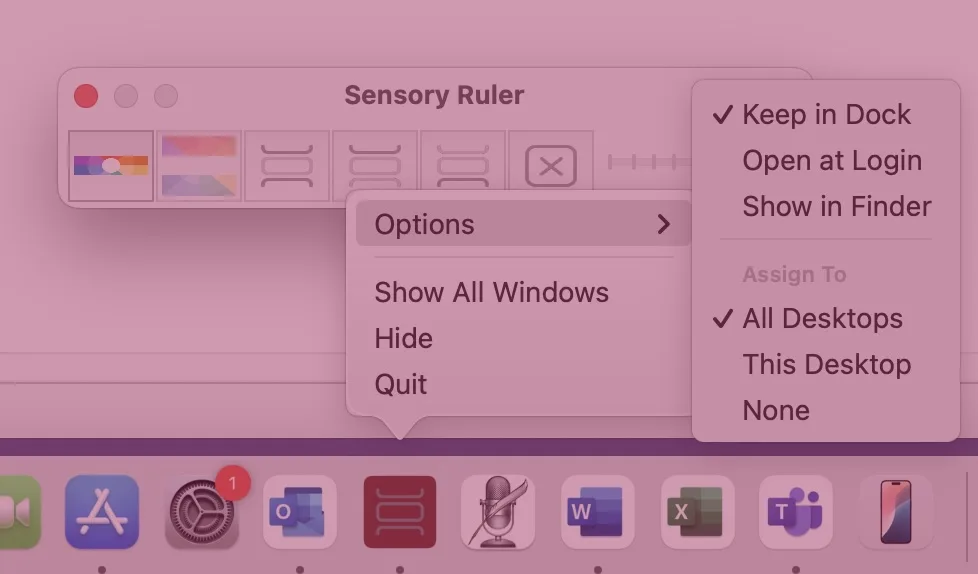
Assigning Sensory Ruler to all desktops
- Right-click the Sensory Ruler icon in the Dock at the bottom of your screen.
- From the context menu, choose Options.
- Select Assign to: All Desktops.
Sensory Ruler will now appear on every virtual desktop you switch to, without needing to relaunch it.
Setting Sensory Ruler to open at login
- Right-click the Sensory Ruler icon in the Dock.
- Choose Options.
- Select Open at Login.
Sensory Ruler will then launch automatically each time you log in to your Mac, ready to use without needing to open it manually.
Working outside the login screen
Sensory Ruler for Mac can also be configured to operate outside of the standard login screen environment. This can be useful in managed or shared Mac setups.