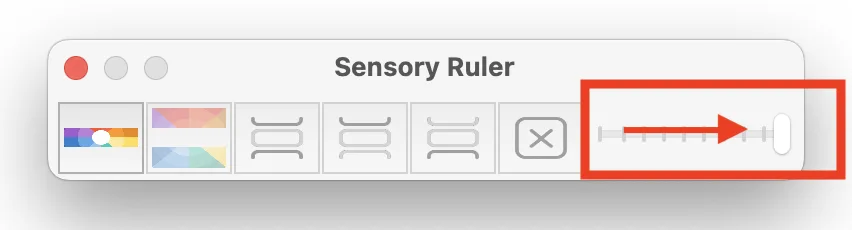
The height of the Sensory Ruler is controlled by the size slider on the toolbar. Drag left for a narrow ruler and right for a taller one. At its maximum position, the ruler expands to cover the entire screen as a full-screen colour tint.
Adjusting ruler height
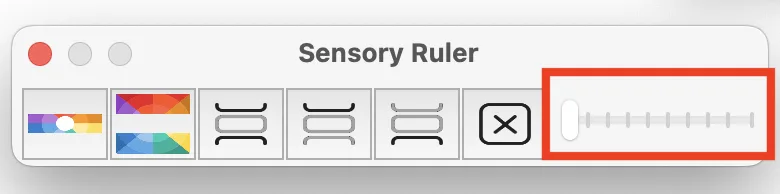
Drag the slider to set the ruler to the height that best suits your reading. The ruler updates in real time as you drag.
Narrow, medium, and full-screen examples
The three screenshots below show the ruler at different heights — from a narrow strip to a medium height to full-screen coverage.
Narrow ruler — a thin strip useful for following a single line of text.
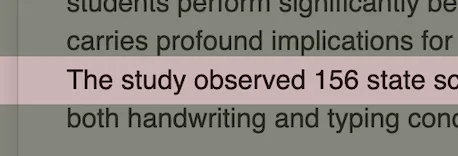
Medium ruler — covering roughly a third of the screen, useful when reading longer paragraphs or for users who find a larger focus area helpful.
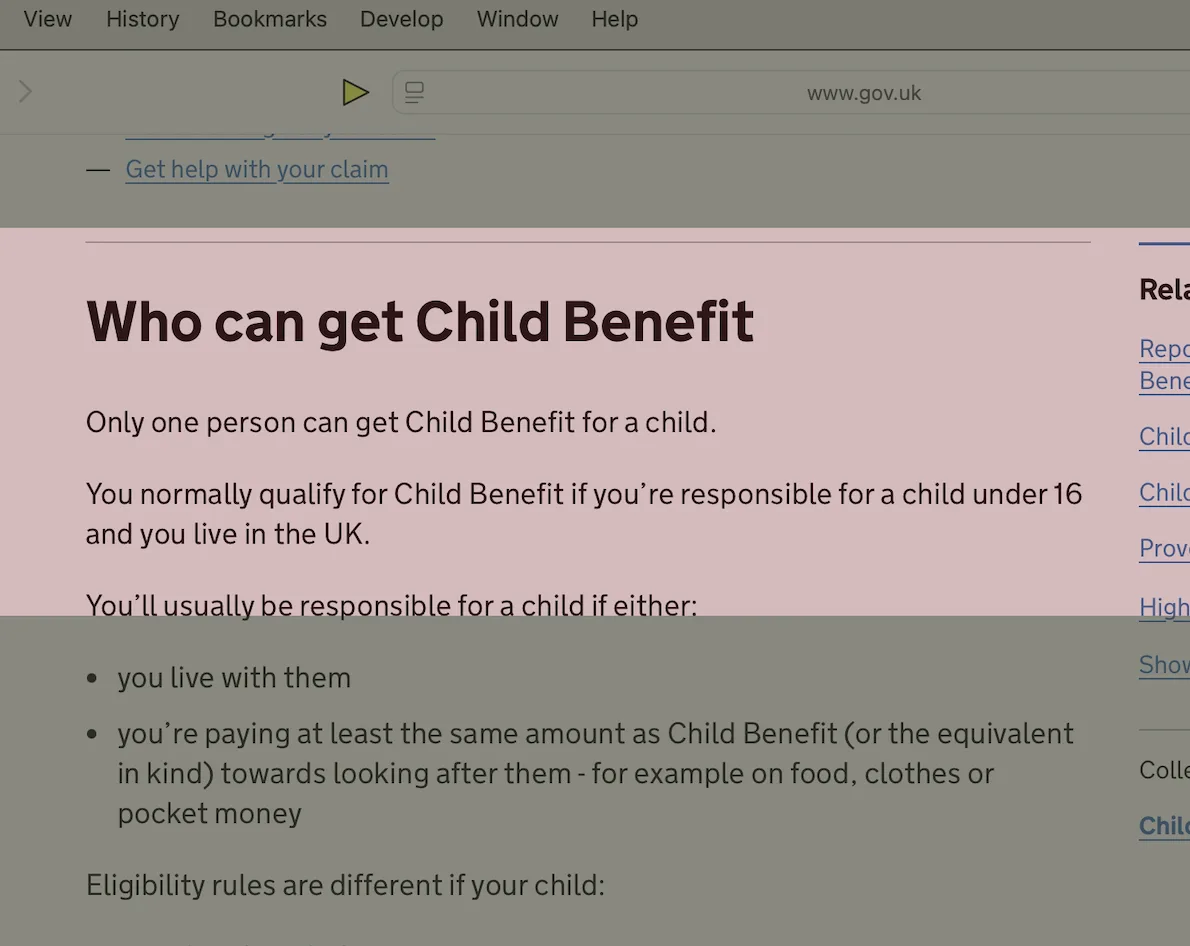
Full screen tint — the slider moved to maximum, covering the entire screen with a colour overlay.
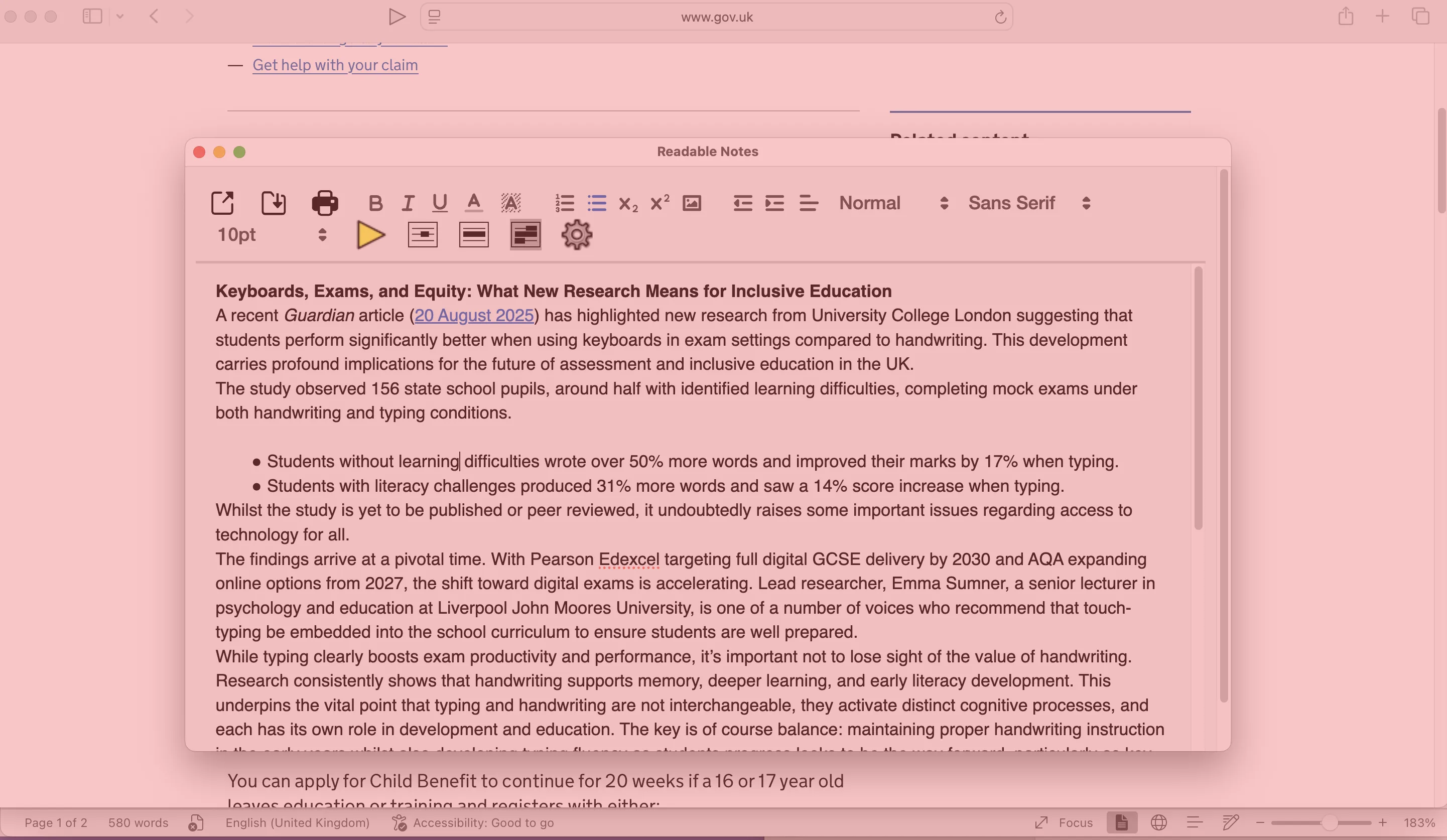
Full-screen tint mode
When the slider is at its maximum position, Sensory Ruler becomes a full-screen colour overlay. In this mode:
- The above and below background tint areas are not visible (the ruler covers the whole screen).
- The ruler colour you have set is applied across the entire display.
- This is useful as a screen tinting tool similar to Sensory Tint for Windows.