
You can tint the screen area above the ruler, below the ruler, or both — independently from the colour of the ruler strip itself. This area is also referred to as the Background Colour within Sensory Ruler. It helps create contrast and makes it easier to focus on the text within the ruler.
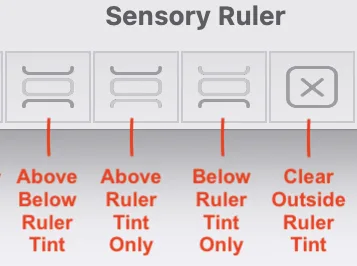
The four tint control icons
The toolbar contains four icons to control where the background tint appears:
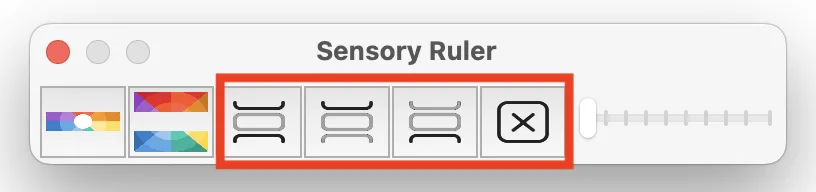
- Above and Below — Applies the background tint to both areas simultaneously.
- Above only — Tints only the area above the ruler strip.
- Below only — Tints only the area below the ruler strip.
- Remove background tint — Removes the background tint entirely, leaving the ruler strip colour only.
Setting the background colour
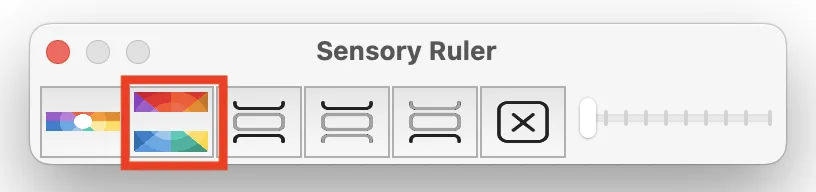
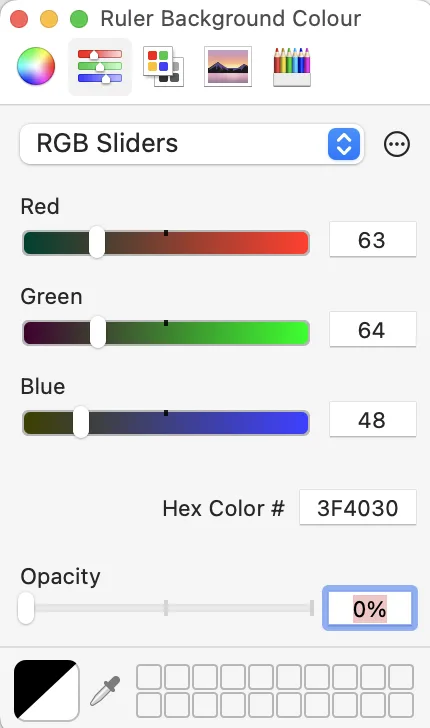
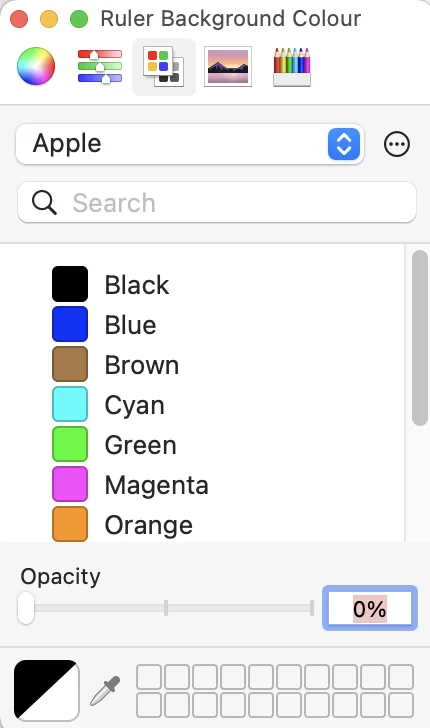
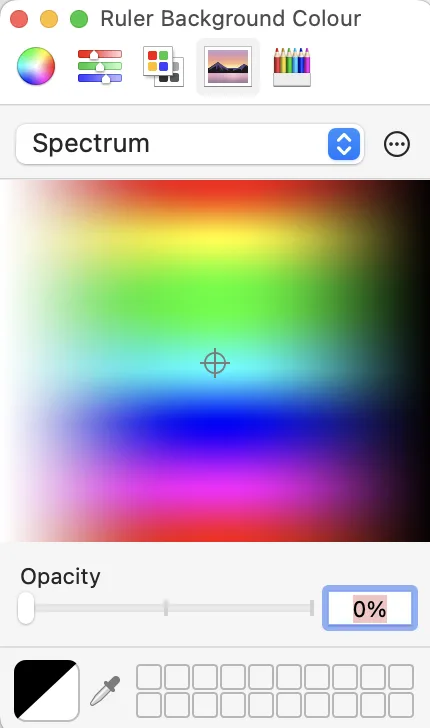
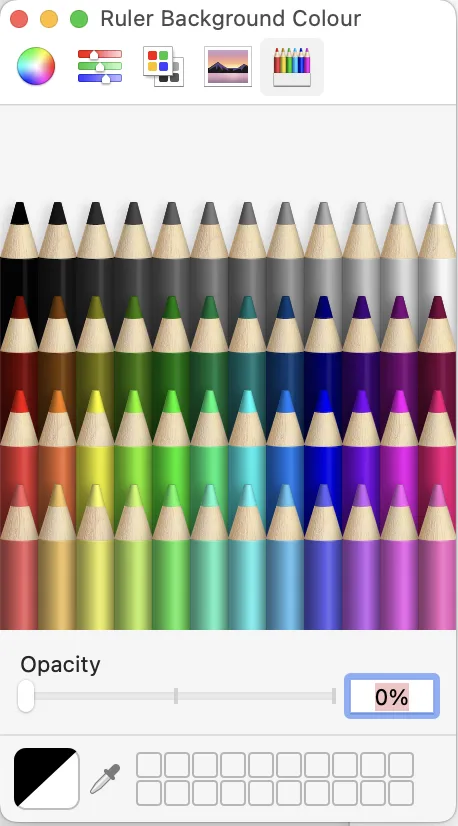
Click the background colour icon (the right-hand colour icon on the toolbar) to open the colour picker for the above/below tint.
The same five colour picker options are available as for the ruler tint — colour wheel, sliders, palette, pencil colours, and hex input. Each also has an opacity slider.
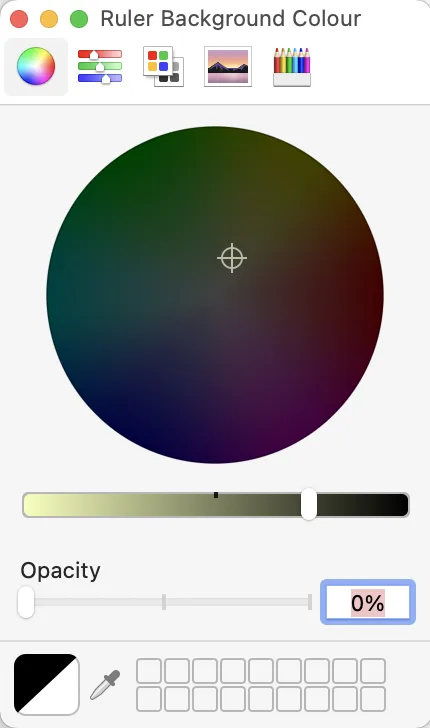
Note: The above and below areas share the same colour. You cannot set a different colour for above than for below — the same tint applies to both. You can control which areas are shown using the four tint control icons.