
Opening a recording for playback
- Tap the Menu button (hamburger icon, top-left) to open the Recordings Manager.
- Tap any recording in the list to open it.
- The playback screen opens automatically.
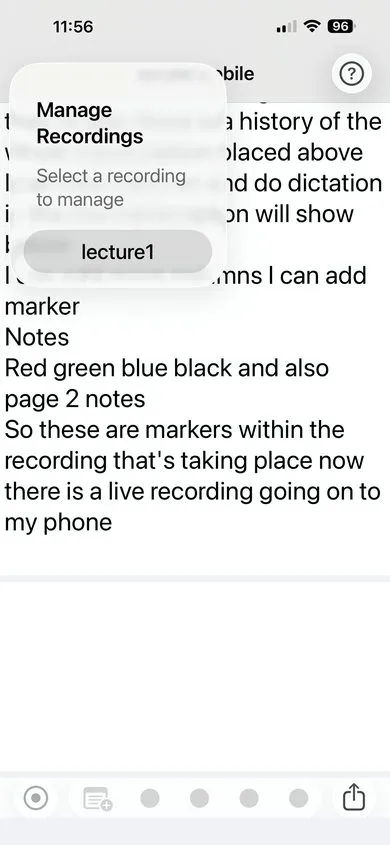
Playback screen
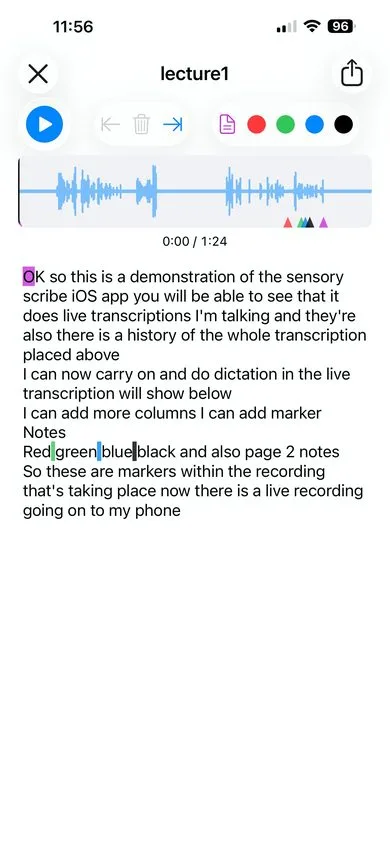
The playback screen includes:
- Waveform display — A visual representation of the audio with a progress indicator. Colour-coded markers appear as vertical lines on the waveform.
- Time label — Shows the current playback position.
- Transcript view — Displays the full transcript. Words are highlighted in sync with the audio as it plays back.
- Play/Pause button (centre of toolbar) — Start or pause playback.
- Previous Marker / Next Marker buttons — Jump instantly to the previous or next colour marker in the recording.
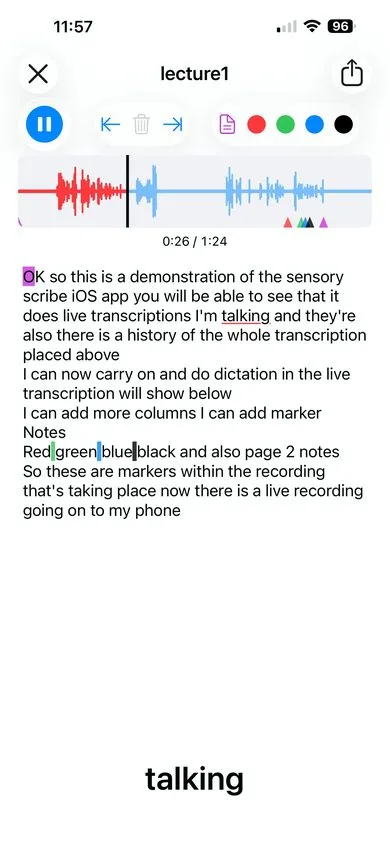
Synced transcript: As audio plays, the current word in the transcript is highlighted. This makes it easy to follow along, spot errors, or find a specific passage quickly.
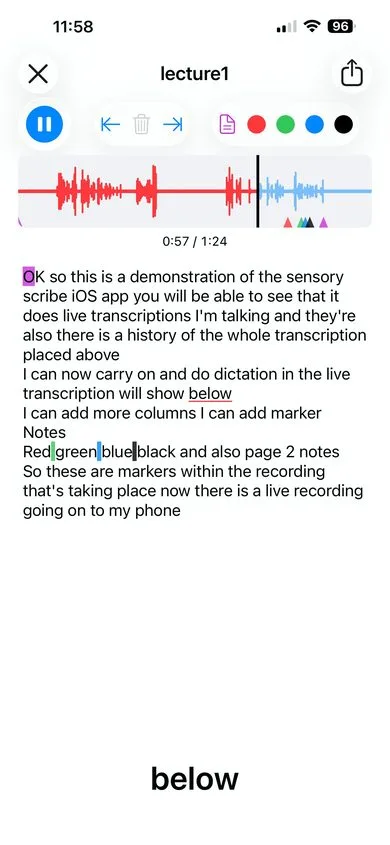
Adding markers during playback
You can add new markers to a recording while reviewing it. Use the same marker buttons (Page, Red, Green, Blue, Black) on the playback screen to insert a marker at the current playback position.
Deleting markers
Use the Delete Marker button to remove a marker at the current playback position.