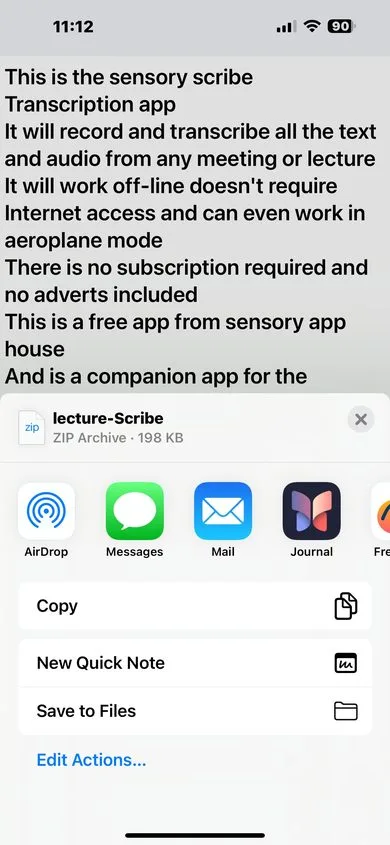
All recordings are accessed and managed through the Recordings Manager. Tap the Menu button (hamburger icon, top-left) on the main screen to open it.
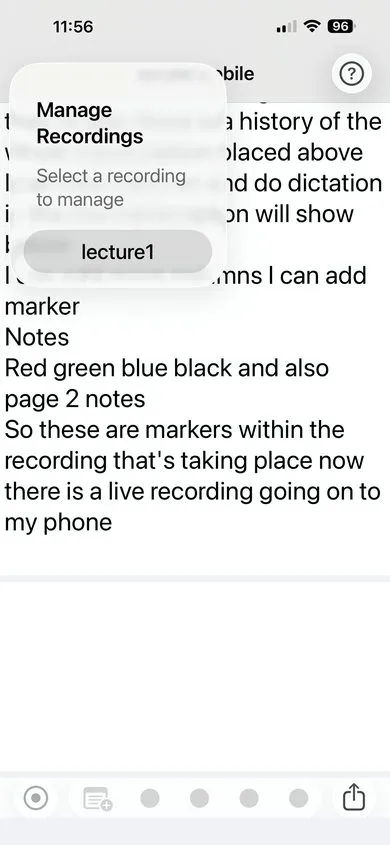
Recordings Manager options
- View — Tap any recording to open it for playback.
- Rename — Change the name of a saved recording. Use descriptive names so recordings are easy to find later.
- Duplicate — Create an exact copy of a recording, including all files.
- Share — Export a recording as a ZIP archive (see below).
- Delete — Permanently remove a recording from your device.
Note: Deleted recordings cannot be recovered. Export a recording using Share before deleting if you want to keep a copy.
Sharing and exporting recordings
When you tap Share on a recording, Scribe Mobile packages all four associated files into a single ZIP archive:
- The audio recording (.m4a)
- The text transcript (.txt)
- Word timestamp data (.wds)
- Marker data (.mks)
The ZIP can be sent via AirDrop, Mail, Messages, saved to Files, or shared through any other method available on your device.