
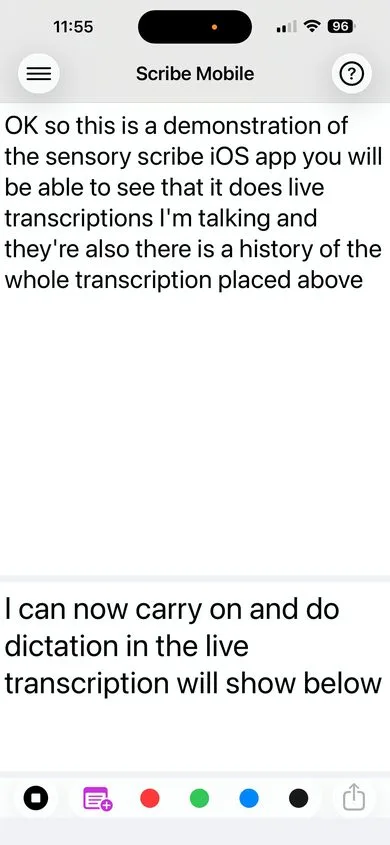
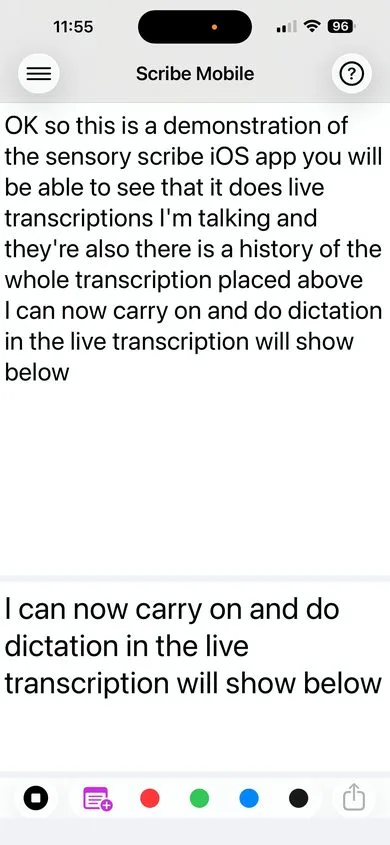
The Scribe Mobile main screen is divided into three areas: the navigation bar at the top, the transcript area in the middle, and the control toolbar at the bottom.
Navigation bar
- Menu button (hamburger icon, top-left) — Opens the Recordings Manager to view, rename, share, duplicate, or delete saved recordings.
- Help button (top-right) — Opens this help guide.
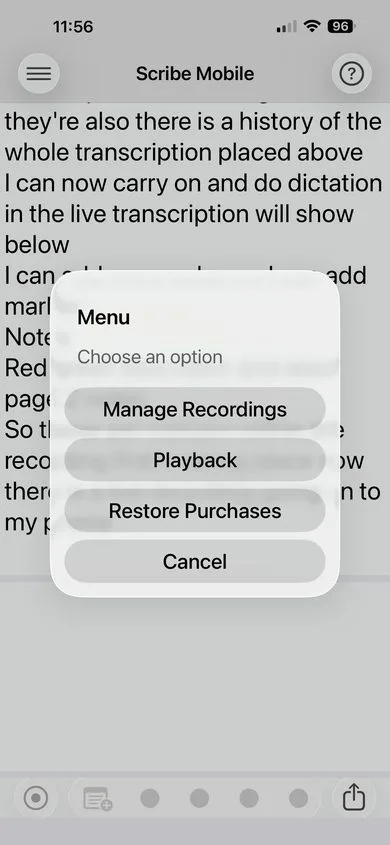
The Menu also contains Restore Purchases — use this if you have previously purchased any in-app upgrades and need to restore them on a new device.
Transcript area
The transcript area contains two text views:
- Upper text view (larger) — Displays the full, finalized transcript. Text here has been confirmed and committed.
- Lower text view (smaller) — Shows live, in-progress recognition. Words appear here first as speech is recognized, then move to the upper view once finalized.
Bottom toolbar
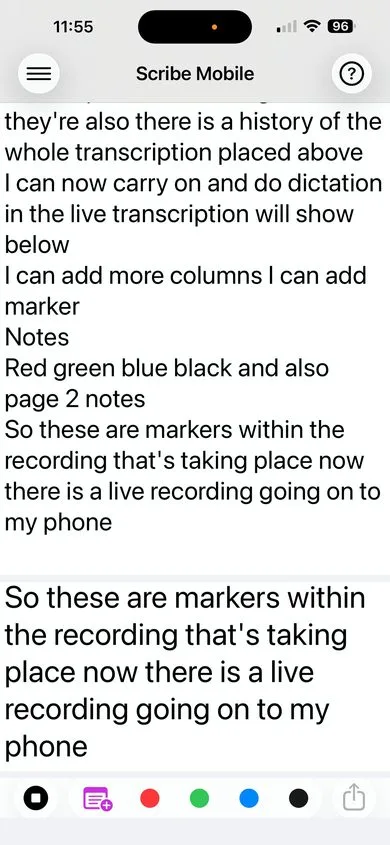
| Button | Function |
|---|---|
| 🔴 Record | Tap to start recording. Turns blue while recording is active. Tap again to stop. |
| Page Marker | Insert a purple page or section-break marker at the current point in the transcript. |
| Red Marker | Insert a red annotation marker — use for urgent or critical points. |
| Green Marker | Insert a green annotation marker — use for positive items or action points. |
| Blue Marker | Insert a blue annotation marker — use for questions or follow-up items. |
| Black Marker | Insert a black annotation marker — general purpose. |
| ⬆ Share | Share or export the current recording. |