
Once text has been recognised, Sensory Reader reads it aloud with real-time word-by-word highlighting so you can follow along.
Playback controls
The Recognized Text panel has two buttons at the bottom:
- Green Play button — starts reading from the beginning. Each word is highlighted as it is spoken.
- Blue Share button — shares the text via the iOS share sheet.
Tap the Play button again at any time to pause. Tap once more to resume from where you left off.
Choosing a voice
Tap the voice icon (person with speaker symbol, top-right of the Recognized Text panel) to open the Select Voice panel.
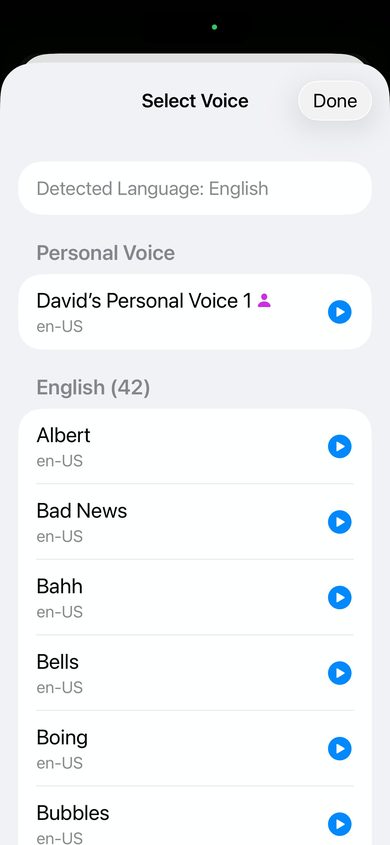
Voices are grouped by language. Sensory Reader automatically detects the language of the scanned text and suggests an appropriate voice. Your voice preference is saved for next time.
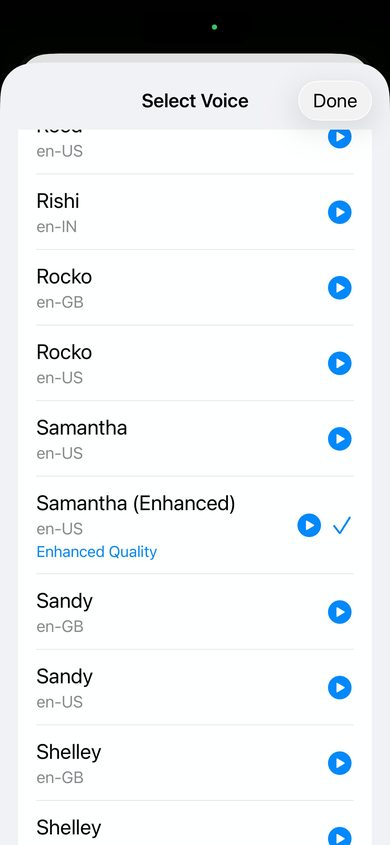
Personal Voice (iOS 17+)
If you have created a Personal Voice on your device (Settings → Accessibility → Personal Voice), it appears at the top of the Select Voice list. Sensory Reader will ask permission to use it when you first select it. Personal Voice reads text back in a voice that sounds like you.
Language support
Sensory Reader supports over 50 languages including English, French, German, Spanish, Italian, Portuguese, Dutch, Welsh, Japanese, Chinese, Korean, Arabic, and many more. The app automatically detects the language of the scanned text and selects a matching voice.