
Sensory Reader uses Apple's on-device Optical Character Recognition (OCR) framework to extract text from captured images. All processing happens on your device — no image data is ever sent to external servers.
Recognising text
- Capture or select an image containing text.
- Optionally crop the image to focus on the text area.
- Tap the Scan button. A loading indicator shows while text is being recognised.
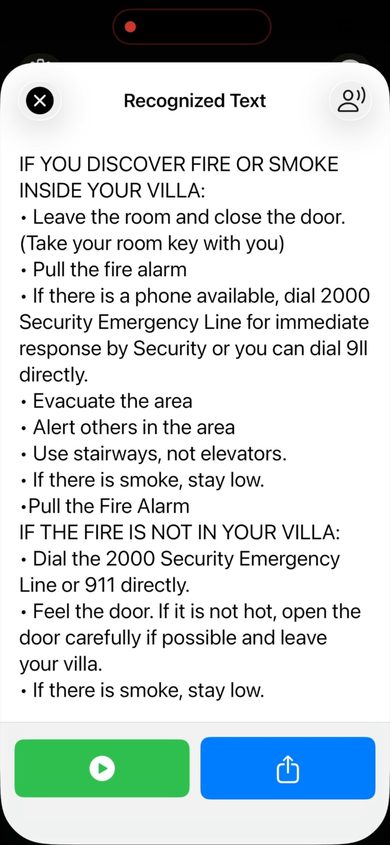
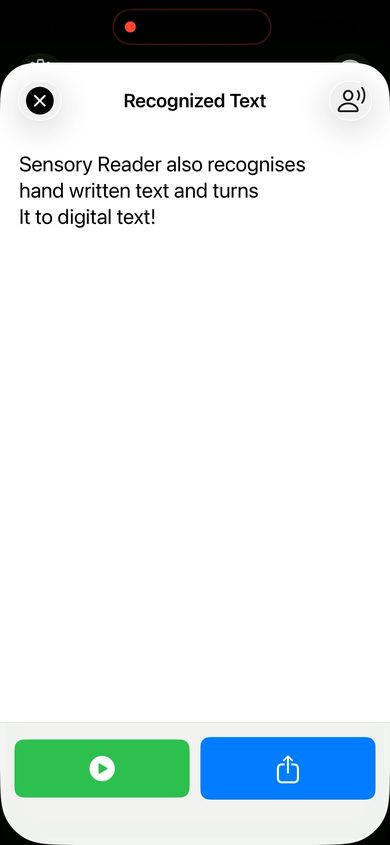
- The Recognized Text panel appears with the extracted text.
Editing recognised text
The Recognized Text panel is editable. Tap anywhere in the text to position the cursor and correct any recognition errors before reading or sharing.
Handwriting recognition
Sensory Reader can also recognise handwritten text and convert it to digital text. Results are best with clear, well-spaced handwriting in good lighting.
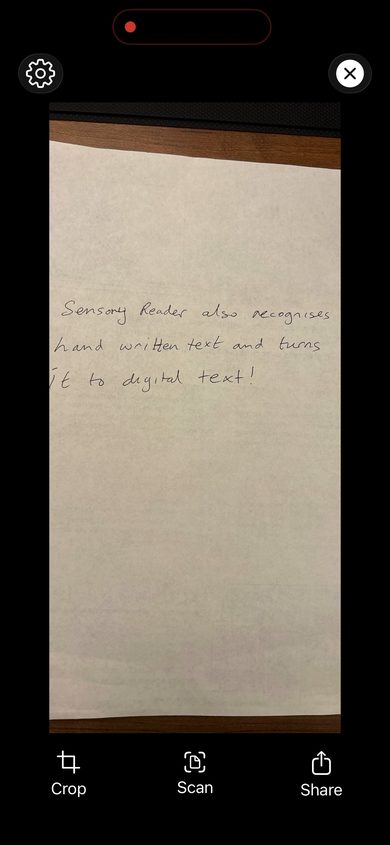
For best results: Ensure good lighting, hold the device steady, and position the camera so text fills the frame. Cropping to the text area before scanning also improves accuracy.