
Readable Notes works with the macOS Dictation and Voice Control features, allowing you to speak your text and have it appear in the document. Click within Readable Notes first to make it the active window, then activate dictation.
Using macOS Dictation with Readable Notes
- Open System Settings → Keyboard → Dictation and turn Dictation on.
- Click within your Readable Notes document to make it the target for dictated text.
- Activate dictation using the microphone key on your keyboard (if available), or using the shortcut set in your Dictation settings (commonly pressing the Control key twice).
- Speak clearly — your words appear in the document as you speak.
- Press the Escape key or click the microphone button to stop dictating.
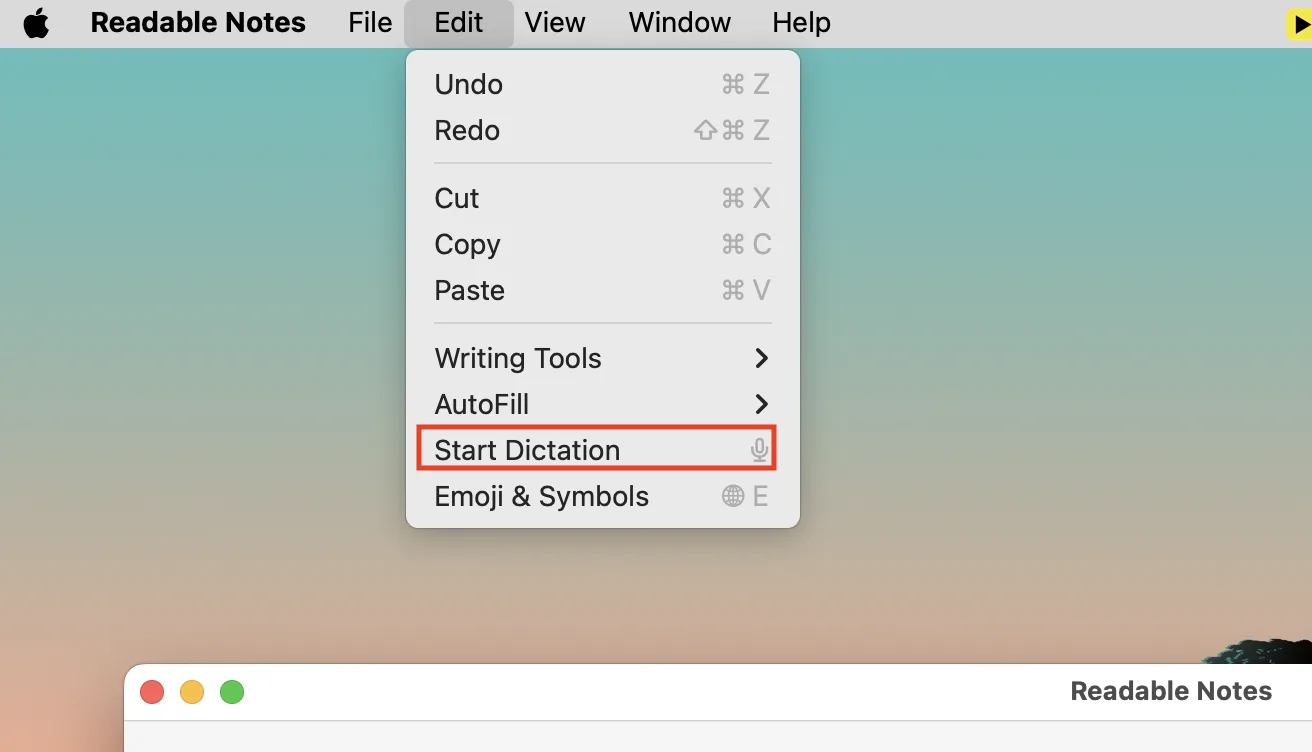
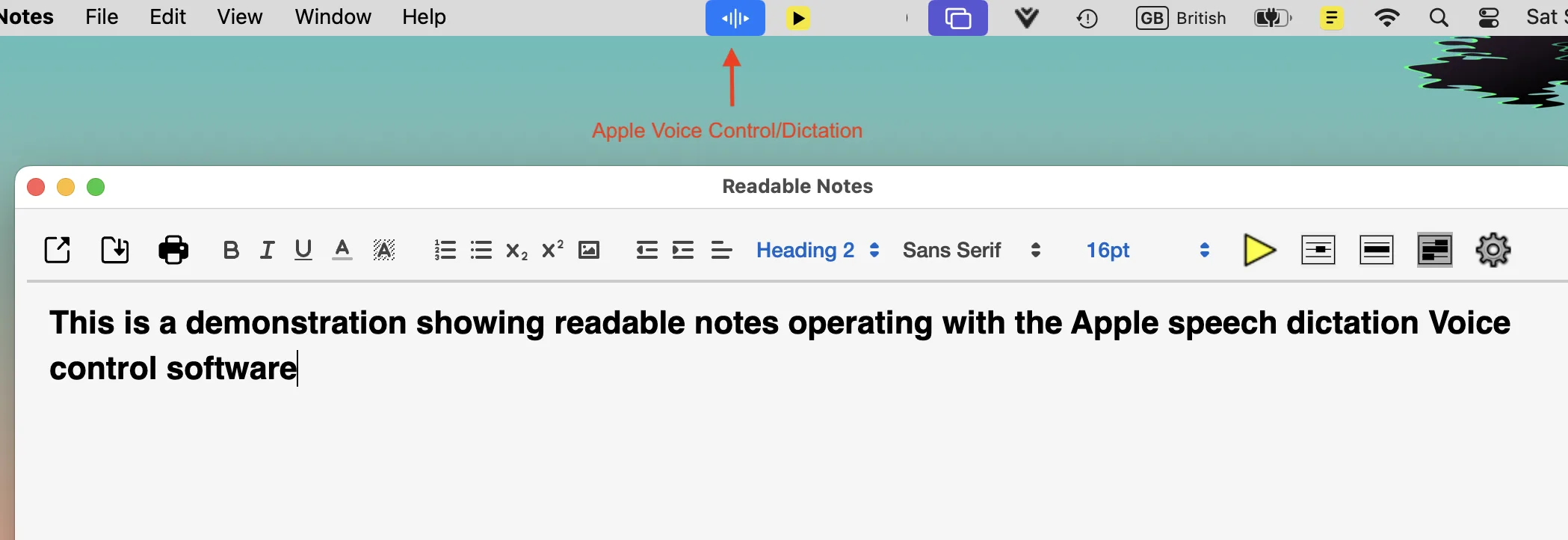
On macOS, Readable Notes shows the Dictation option in the application menu. You can start and stop dictation directly from within the app.
Using Voice Control with Readable Notes
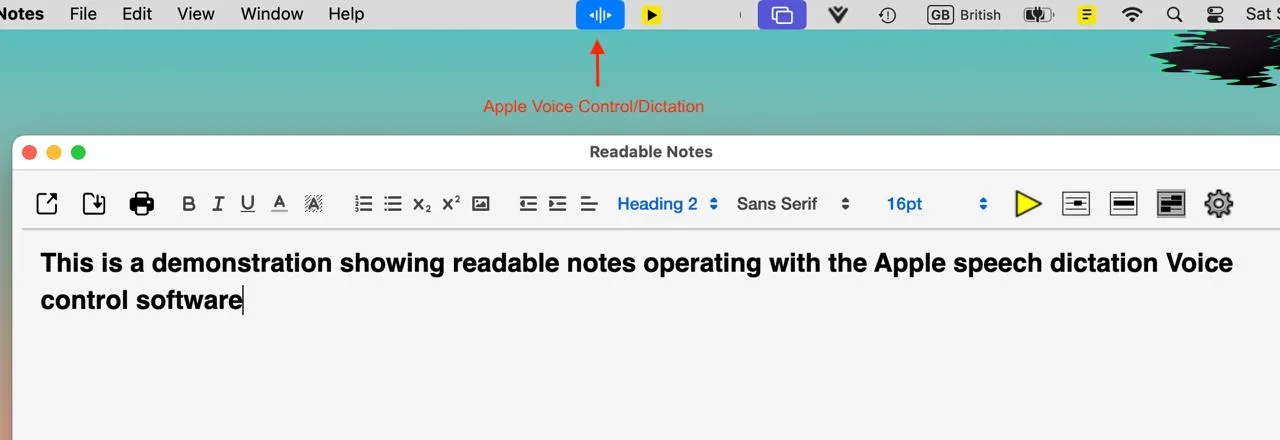
Apple Voice Control provides a more comprehensive hands-free experience — you can dictate, navigate, and issue commands entirely by voice.
- Open System Settings → Accessibility → Voice Control and enable it.
- Click within Readable Notes to target it.
- Say "Start dictating" or simply begin speaking — text appears in your document.
- Use voice commands such as "new line", "delete that", or "press return" to control your document without touching the keyboard.
Tip: For best dictation accuracy, use a good quality microphone in a quiet environment. Speak at a natural pace — pausing briefly between phrases helps the system recognise word boundaries.
Offline dictation: macOS Dictation can work offline on Apple Silicon Macs and newer Intel Macs. Check that offline enhanced dictation is enabled in your Dictation settings for full privacy.