
Sensory Tint is designed to be quick and simple to configure. All settings are available directly in the Sensory Tint application window.
Colour Modes
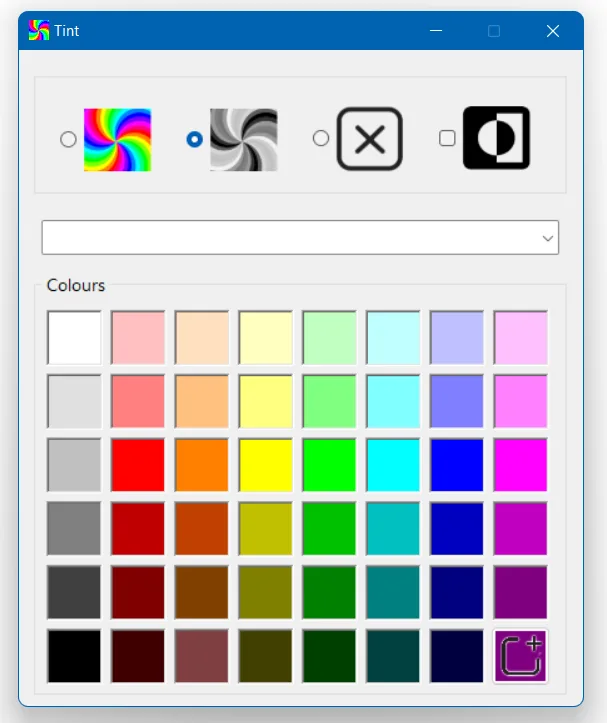
Sensory Tint offers four modes for adjusting how colour is applied to your screen:
- Full Colour — Applies a full colour tint overlay in your chosen colour. The screen takes on that colour tone while text and images remain visible beneath it.
- Mono — Converts your entire display to a single monochrome tone based on your chosen colour. Useful for reducing the impact of screen brightness.
- None — Removes the tint entirely while keeping Sensory Tint running in the background. Switch back to a tint at any time without reconfiguring.
- Inverted — Reverses the colours on your screen, turning white backgrounds dark and dark text light. This can reduce eye strain in bright environments.
Choosing a Colour
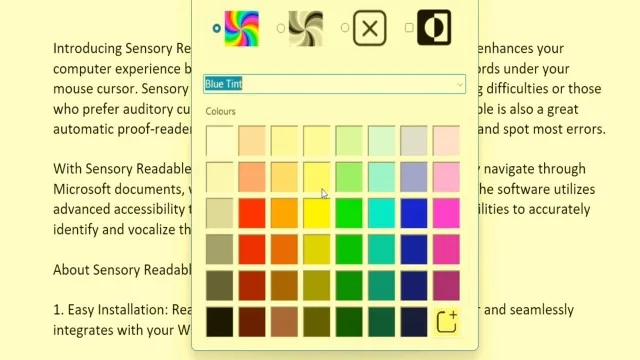
Use the colour picker in the Sensory Tint window to select any colour for the screen overlay. The tint updates in real time as you adjust the colour, so you can see the effect on your screen immediately without needing to confirm.
Preset Tints
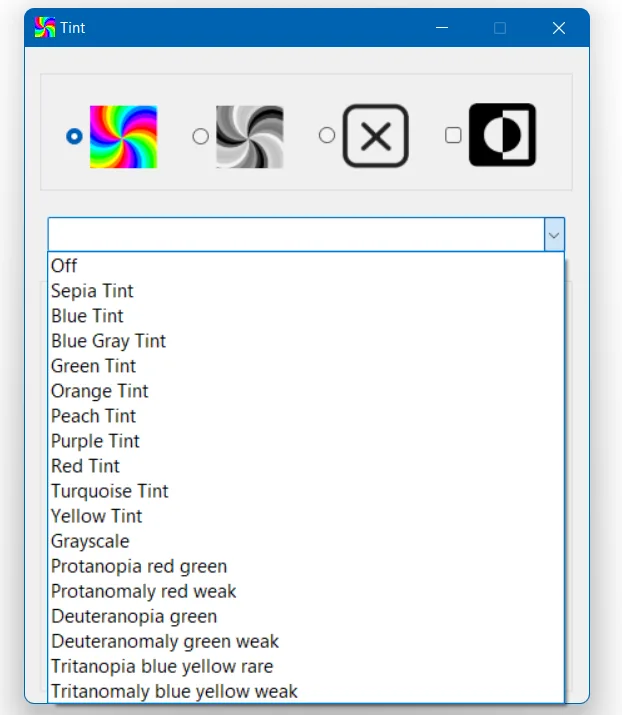
A dropdown list of preset tints and screen effects is included. These cover a range of commonly used colour tints as well as specific adjustments designed to assist with colour vision deficiency. The preset options include corrections for conditions such as protanopia (red-green), deuteranopia (green), and tritanopia (blue-yellow), as well as general contrast enhancements.
Select a preset from the dropdown and it is applied immediately. You can adjust further from there using the colour picker.
Custom Colour Palette
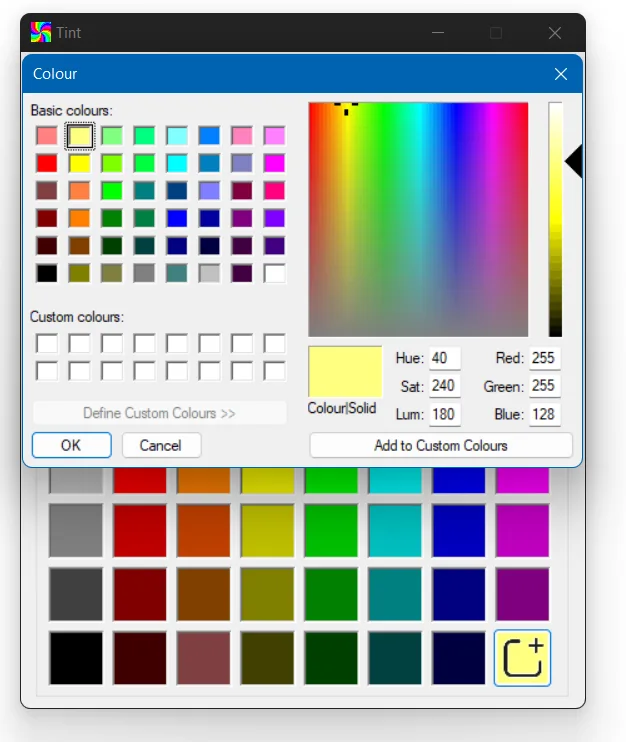
If you have a preferred colour that you use regularly, you can add it to the custom colour palette. This saves it as a swatch so it is always available at a click, without needing to use the colour picker each time.
Minimising to the System Tray
Sensory Tint can be minimised to the Windows system tray (the notification area in the bottom-right corner of the taskbar). The tint overlay remains fully active on your screen while the application window is hidden. Click the Sensory Tint icon in the system tray to restore the window at any time.
Multiple Monitor Support
Sensory Tint automatically extends the colour overlay across all connected displays. Whether you are using a single monitor, a dual monitor setup, or an extended display, the tint covers every screen simultaneously using the same colour settings.