
Sensory PDF Reader for Mac includes annotation tools for typing onto a PDF and making freehand drawings with your mouse.
Text annotation
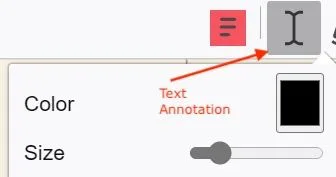
Add typed text to any point in a PDF — useful for answering examination questions or adding comments to documents.
- Click the text annotation icon in the toolbar.
- Choose your text colour and font size.
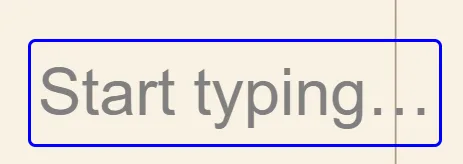
- Click at the point in the document where you want to type — a text box appears.
- Type your text.
- You can drag the text box to reposition it, or change the font and size afterwards.
- Click elsewhere on the document to confirm and open a new text box for the next annotation.
- Press Escape to dismiss a blank text box.
- Click the annotation icon again to turn off text annotation mode.
Remember to save your document after adding annotations using the Save icon or File → Save.
Free-form annotation
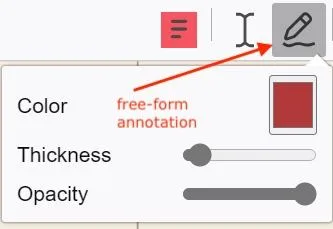
Draw freehand shapes, circles, or underlines directly on your PDF using the mouse.
- Click the free-form annotation button in the toolbar.
- Choose your colour and line thickness.
- Hold the left mouse button and draw your annotation.
- Press Escape to select an existing annotation.
- Press Delete to remove a selected annotation. You can also resize annotations.
Remember to save your document after adding annotations.