
Readable Notes works with Microsoft Windows text suggestions, showing word and phrase suggestions as you type to help speed up writing and reduce errors.
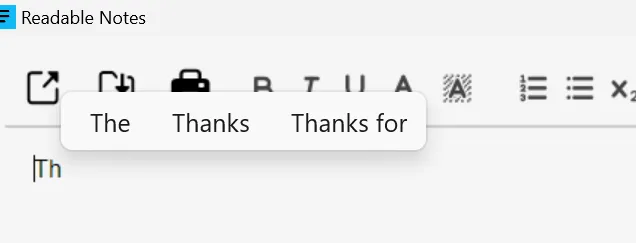
Enabling word prediction on Windows
- Open Settings on your Windows PC (press Windows key + I).
- Go to Time & Language → Typing.
- Turn on Show text suggestions when typing on the physical keyboard.
- Start typing in Readable Notes — suggestions will appear as you type.
Note: Windows text suggestions work in apps that support the Windows text input system. The prediction bar appears as a floating row above your text as you type, showing suggested words you can click to accept.
Using predictions
- Click a suggestion in the floating bar to accept it.
- Press the suggested word using the number keys shown above each suggestion.
- Continue typing to dismiss suggestions and enter your own text.
Readable Notes and prediction
When word prediction is active, Readable Notes can speak the suggested words as they appear in the prediction bar, letting you hear the options without needing to look at the screen. This is particularly helpful for users who find it difficult to read small prediction text.
Tip: Readable Notes also supports third-party word prediction tools that work at the system level on Windows. If you use a specialist word prediction application, it should work alongside Readable Notes in the same way.