
Readable Notes works with Windows speech dictation tools, allowing you to speak your text and have it appear in the document. Click within Readable Notes first to make it the active window, then activate your chosen dictation tool.
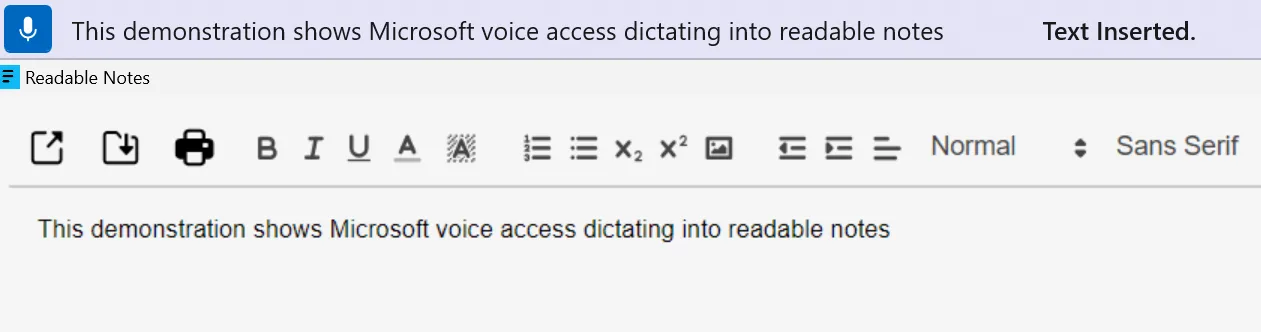
Windows Voice Access
Windows Voice Access is the most capable dictation option for Windows 11, working offline with no internet connection required.
- Open Settings → Accessibility → Speech and turn on Voice Access.
- On first use, Windows may download a small language file — this is a one-time download.
- Click within your Readable Notes document to make it the target.
- Activate Voice Access by saying "Voice Access, wake up" or clicking the microphone button in the Voice Access toolbar.
- Speak clearly — your words appear in the Readable Notes document as you speak.
- Say "Stop listening" or click the microphone button to pause dictation.
Requirement: Windows Voice Access requires Windows 11 version 22H2 or newer. It works fully offline — no internet connection is needed for dictation.
Windows Speech Recognition (older method)
For earlier versions of Windows, the built-in Windows Speech Recognition also works with Readable Notes:
- Press Windows key + H to open the Windows dictation panel.
- Click within your Readable Notes document.
- Begin speaking — text appears as you dictate.
Tip: For best dictation accuracy, use a good-quality microphone in a quiet environment. Speak at a natural pace, pausing briefly between phrases.